A little know-how. A better site record.
Quick, practical tutorials for Toccobird Panorama Measure.
Watch the full playlist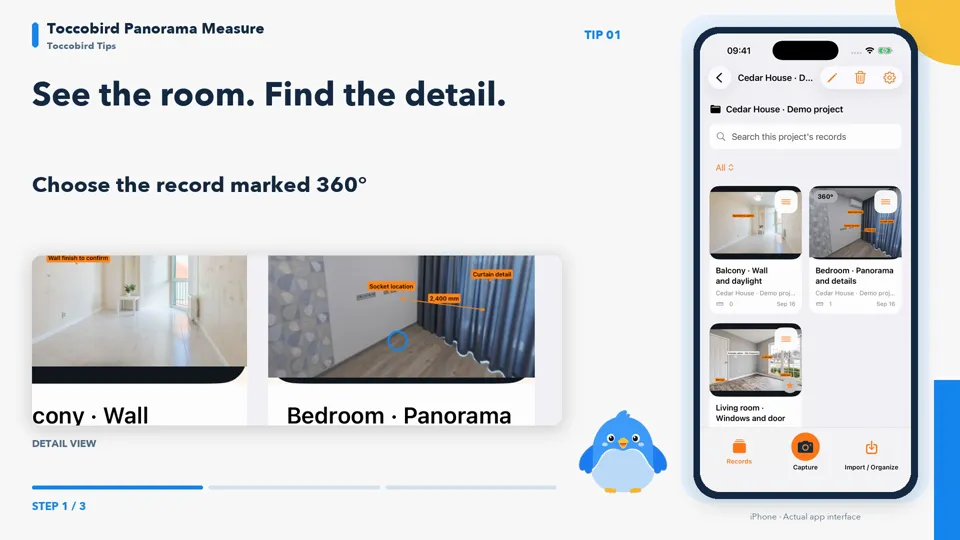
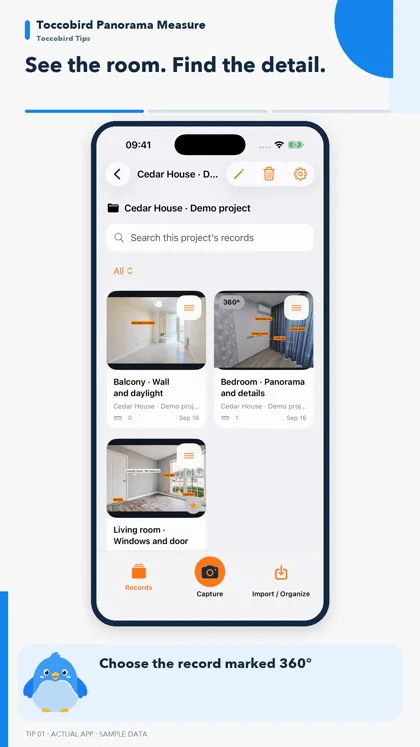
01See the room. Find the detail.
Choose a 360° record
Open a record marked 360° in your project.
Drag and pinch to explore
Look around the room and zoom in on a detail.
Open a hotspot photo
Tap a hotspot to find its linked photo.
Use the panorama for context and hotspot photos for detail.
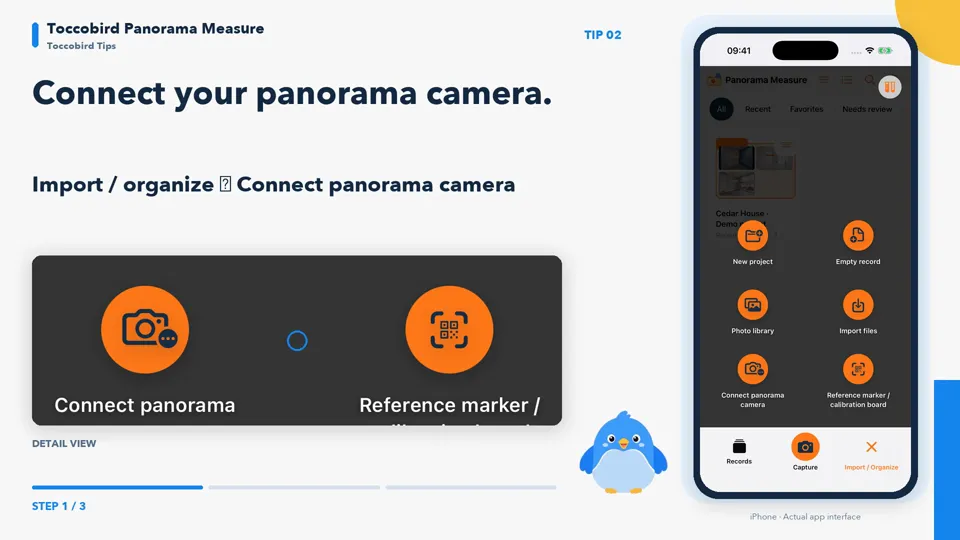
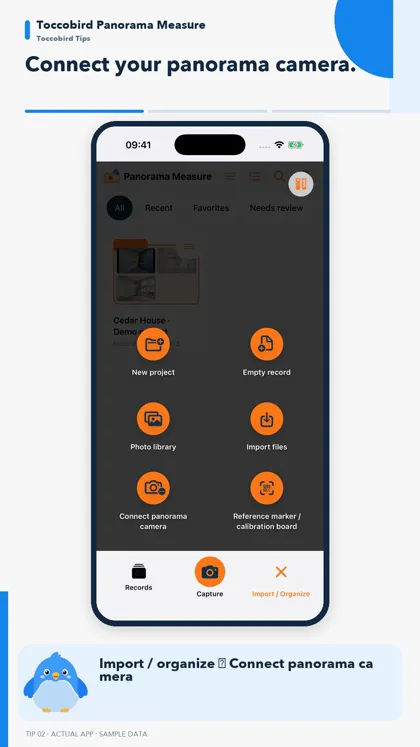
02Connect your panorama camera.
Open Import / organize
Choose Connect panorama camera.
Choose your camera brand
Power on the camera, then select the matching brand.
Follow the connection prompts
Allow local network access and follow the pairing and camera Wi-Fi instructions.
Insta360 and DJI OSMO 360 connections are experimental. Compatibility depends on camera model, firmware and capture mode.
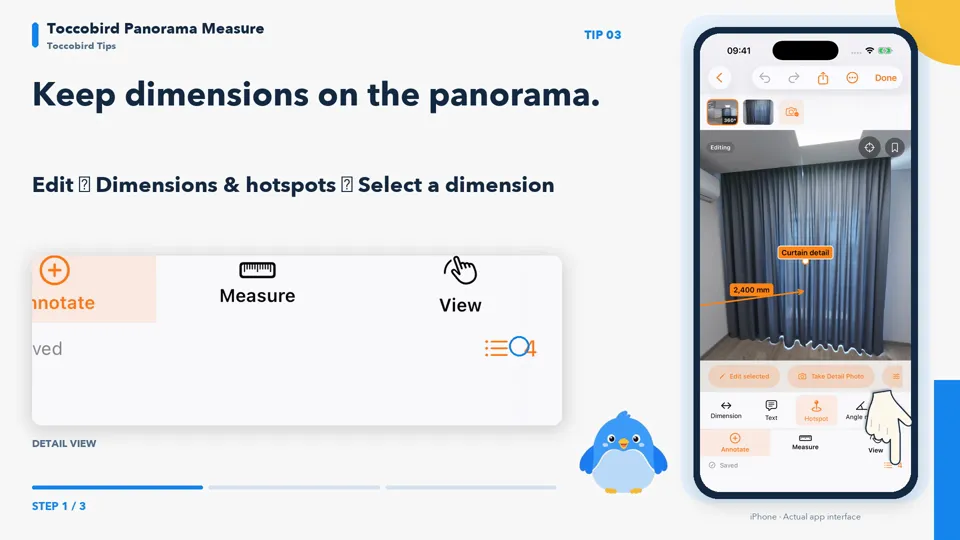
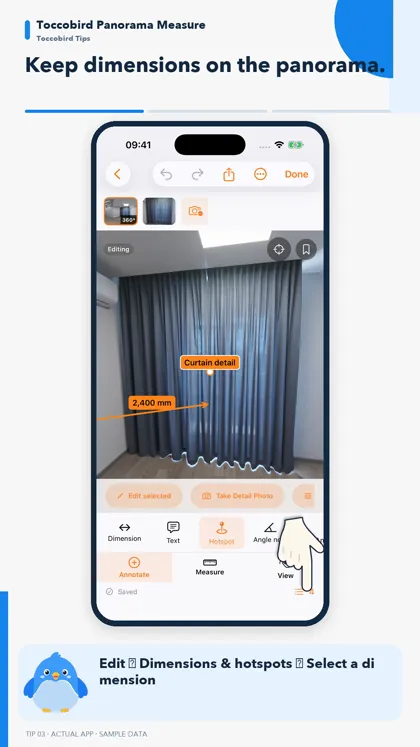
03Keep dimensions on the panorama.
Select a dimension
Open Edit, then Dimensions & hotspots. Choose the dimension.
Check its value and unit
Review the dimension in its original context. The tutorial uses 2,400 mm as an example.
Add the details
Open More to enter a name, note and source, then tap Done.
Tutorial dimensions are examples. Measure and verify important dimensions on site before installation or construction.
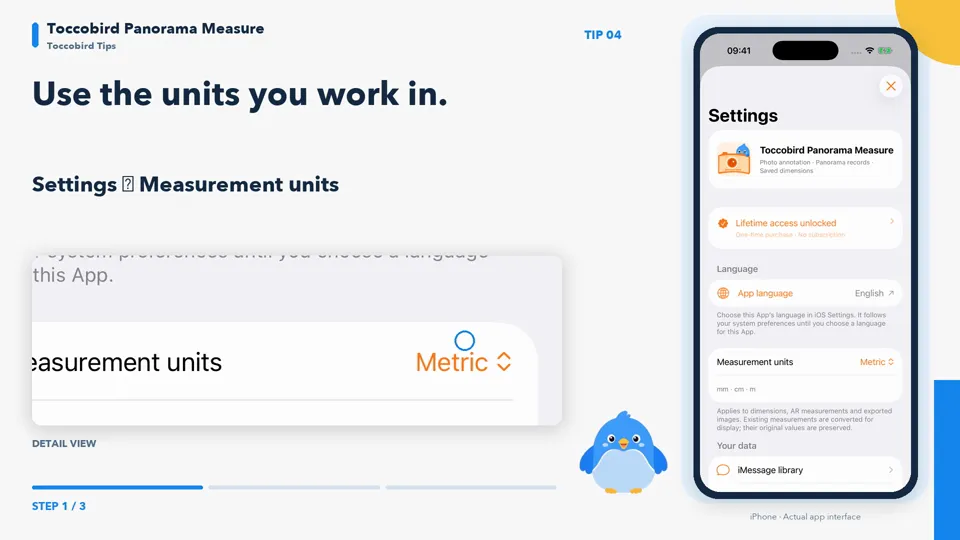
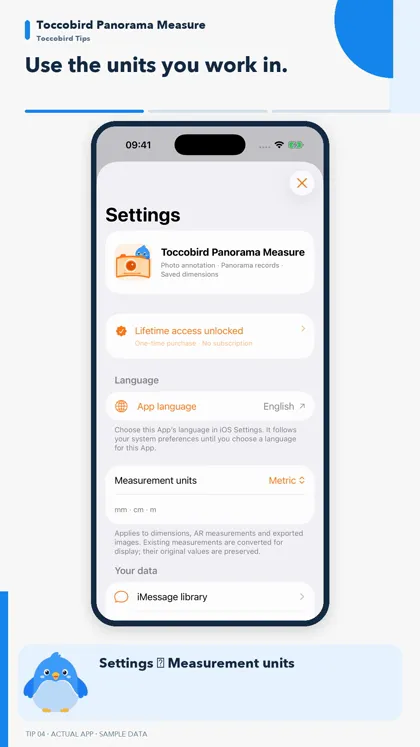
04Use the units you work in.
1.1 previewOpen Measurement units
Find the measurement preference in Settings.
Choose Metric or Imperial
Select the unit system that fits your workflow.
Return to your record
See converted dimensions in annotations, measurements and exports.
Switching the display unit keeps the original measurement values. This tutorial previews version 1.1.
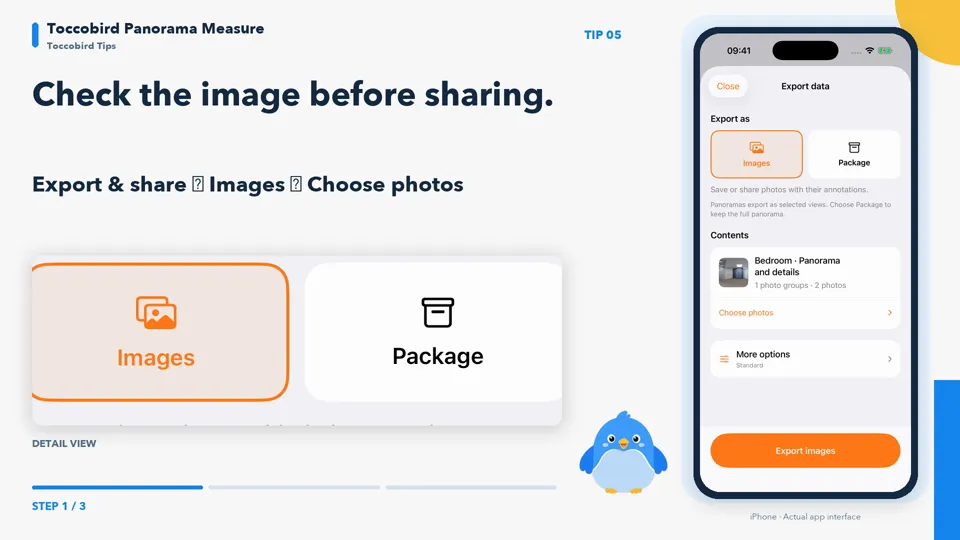
05Check the image before sharing.
1.1 previewChoose photos to export
Open Export & share, then Images and Choose photos.
Preview the result
Export the images and open a thumbnail to check it.
Save or share
Save to Photos or Files, or share the selected images.
The updated results window is a 1.1 preview. Image exports use a static panorama view; choose a data package to keep the full panorama and editable annotations.
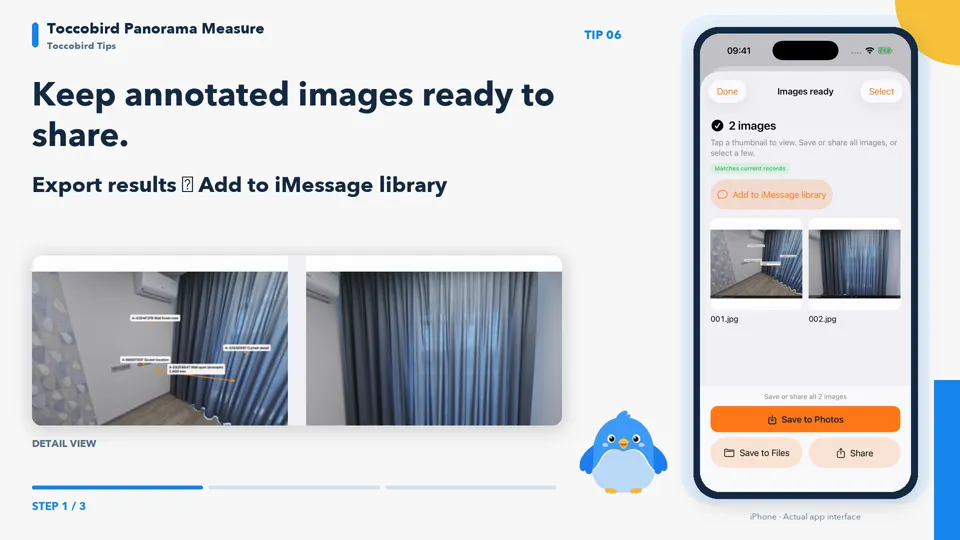
06Keep annotated images ready to share.
1.1 previewAdd selected exports
In export results, choose Add to iMessage library.
Check the confirmation
Manage your saved image copies from Settings.
Choose an image in Messages
Add it to a message draft, then decide when to send.
The library holds exported copies. Export again after editing the original; removing a copy leaves the original photo intact. This is a 1.1 preview.
If YouTube is unavailable on your network, you can still follow the written steps on this page.
A minute of inspiration.
Four quick tips, in a vertical view.